To read Markdown nicely in the terminal, reach for glow (true rendering), bat (syntax-highlighted source), or pandoc piped to a terminal browser (universal conversion). Each beats plain cat for a different reason. Here's when to use which, with exact install and usage commands.
Run cat README.md and you get the raw file: literal # and ## markers, * emphasis characters, backtick fences, and text link syntax, all dumped as plain text with no formatting. cat never interprets Markdown — it just shows the source. The 2026 r/commandline thread around catmd (a small "cat, but for Markdown" experiment) captured the itch perfectly. But before you adopt a brand-new tool, three well-established options already solve this. Following the rule of three, here they are.
1. glow — the purpose-built renderer
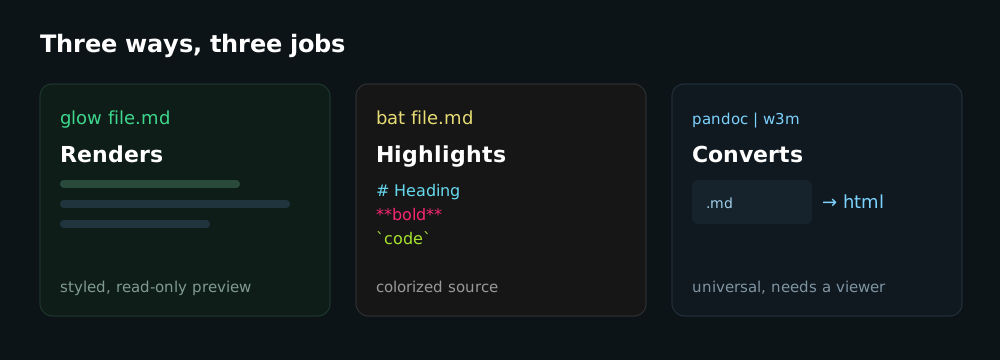
glow by Charm is a terminal Markdown reader that actually renders your file: styled headings, formatted lists and blockquotes, aligned tables, and syntax-highlighted code blocks. It's the closest thing to a browser preview without leaving the shell.
Install:
# macOS / Linux (Homebrew)
brew install glow

# Windows
winget install charmbracelet.glow

# Any platform with Go
go install github.com/charmbracelet/glow/v2@latest
On Debian/Ubuntu, glow isn't in the default repositories — you add Charm's apt repo first, then sudo apt install glow.
Use it:
glow README.md        # render a file
glow -p README.md     # render in a scrollable pager
glow .                # interactive file browser (TUI)
Pros: genuine rendering, an interactive TUI with less-like navigation, and auto-detection of your terminal's light/dark background. Cons: it's a read-only viewer (no editing) and the styling is opinionated rather than pixel-faithful to GitHub. MIT-licensed and widely adopted (~26k GitHub stars).
2. bat — a cat clone that highlights
bat is "cat with wings": a drop-in replacement that adds syntax highlighting, line numbers, a file header, Git change markers, and automatic paging.
One important distinction: bat does not render Markdown — it syntax-highlights the source. You still see the #, , and backtick characters; they're just colorized and themed. That makes bat the honest middle ground — far more readable than cat, but it shows pretty source*, not a rendered document.
Install:
# macOS / Linux (Homebrew)
brew install bat

# Debian / Ubuntu (binary is named batcat)
sudo apt install bat

# Windows
winget install sharkdp.bat
On Debian/Ubuntu the binary is installed as batcat (a naming conflict), so most people add alias bat='batcat' to their shell config.
Use it:
bat README.mdPros: highlighting for 170+ languages, Git integration, and a great cat replacement overall. Cons: no actual Markdown rendering, and themes look best in a truecolor terminal. Dual-licensed Apache-2.0/MIT and extremely popular (~59k stars).
3. pandoc + a terminal browser — the universal converter
pandoc converts Markdown to HTML, which you then pipe into a text-mode browser like w3m or lynx that lays out the HTML as formatted terminal text. This is the power-user route: real rendering using decades-stable Unix tools.
Install (you need both pieces):
# pandoc
brew install pandoc            # or: sudo apt install pandoc

# a terminal browser
brew install w3m               # or: sudo apt install w3m
Use it:
pandoc README.md | w3m -T text/html
# or with lynx:
pandoc README.md | lynx -stdin
Pros: true document rendering and enormous flexibility — the same pandoc also converts Markdown to PDF, DOCX, LaTeX, and more. Cons: it's a two-tool dependency (nothing is bundled — you must install w3m or lynx separately), the pipe is verbose, and code blocks aren't highlighted by default. pandoc is GPL-licensed and the de-facto standard for document conversion.
Which one should you use?
| Tool | What it does | Reach for it when… |
|---|---|---|
| glow | Renders Markdown, styled | You want a clean, read-only preview |
| bat | Highlights the source | You're reading/inspecting the raw .md |
| pandoc + w3m | Converts to HTML, renders | You want real rendering or other export formats |
Start with glow for everyday reading, keep bat as your cat upgrade, and pull out pandoc when you need conversion power.
When the terminal isn't enough: publish it
Rendering Markdown locally is perfect for you. But the moment you need to share that file — send it to a teammate, drop it in a ticket, or post it publicly — a terminal renderer can't help. That's where a Markdown link comes in: paste your .md into Notebin, click Create link, and you get a clean, server-rendered page anyone can open in a browser. Think of it as the cat of the web: instead of printing Markdown to your screen, it publishes it to a shareable URL.